Optivra Image Studio
Scan, process, review, approve, and revert WooCommerce product images without leaving admin.
Open plugin details
Optivra for WooCommerce
Turn product photos into consistent, SEO-ready catalogue assets with approval workflows, usage controls, and a plugin built for real store operations.
Plugins
Scan, process, review, approve, and revert WooCommerce product images without leaving admin.
Open plugin detailsListing QA, image compliance checks, and marketplace-specific export helpers.
Optivra Image Studio for WooCommerce
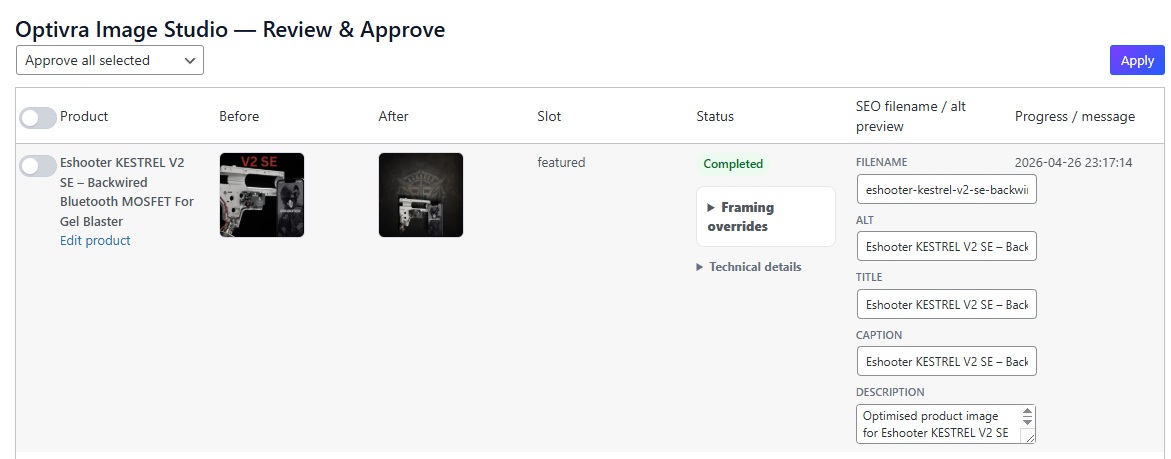
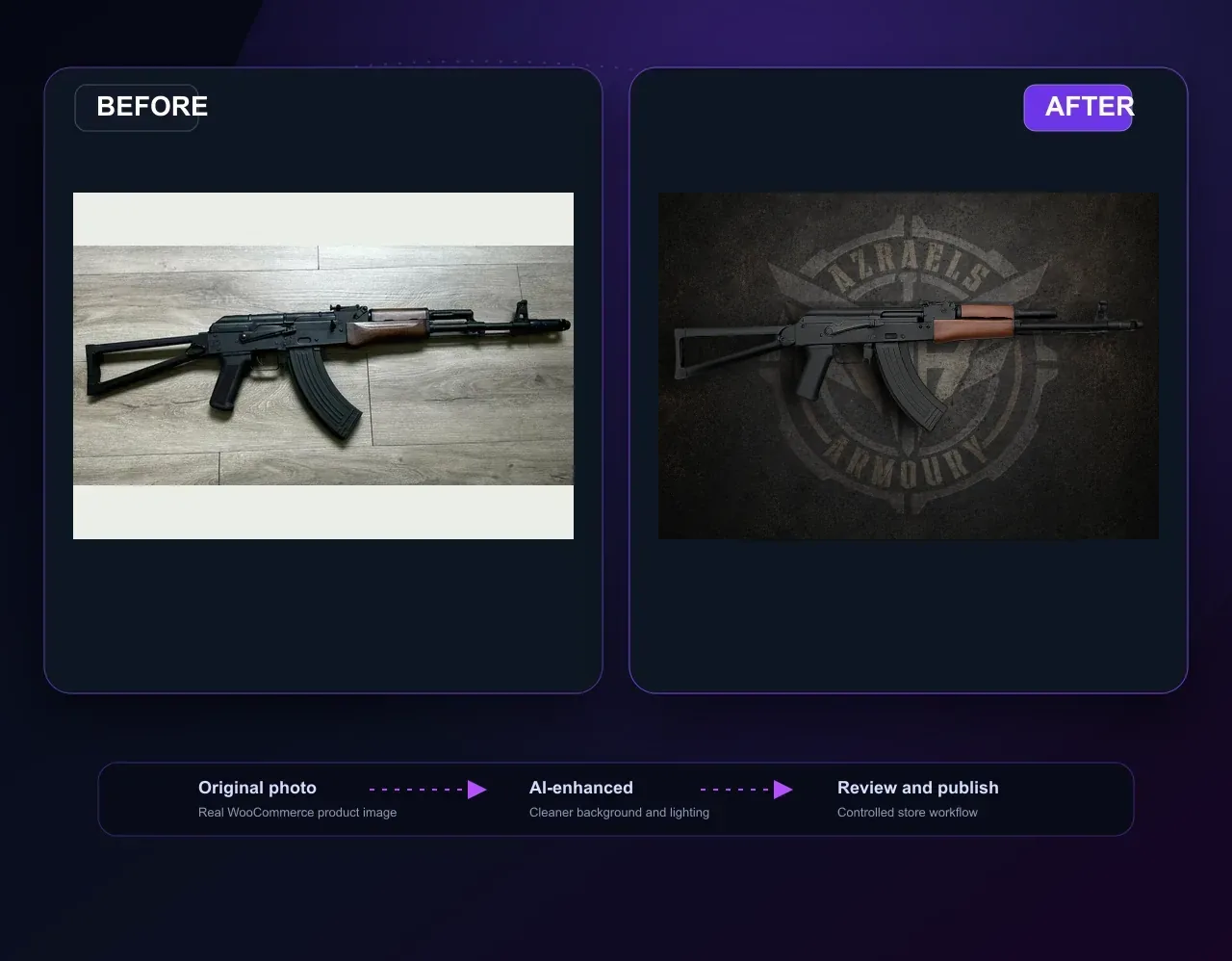
The WooCommerce plugin scans featured and gallery images, sends selected assets to Optivra, then lets admins approve the processed version before replacing the original.
Choose a planAdmins see credits, selected images, upgrade prompts, and buy-credit CTAs.
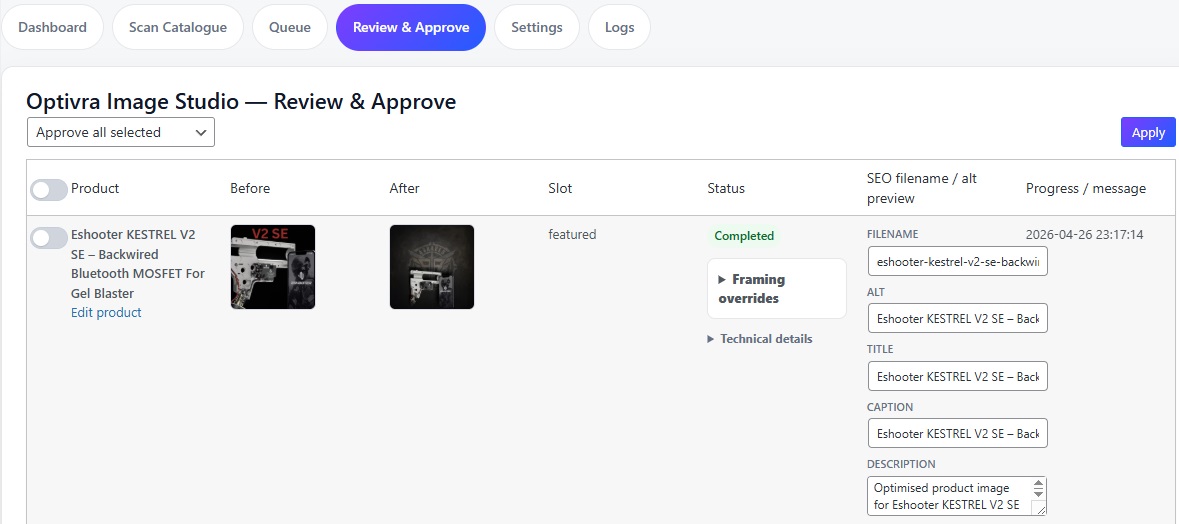
Suggested filename, alt text, title, caption, and description can be edited before approval.
Processed images replace WooCommerce product assets only after approval.
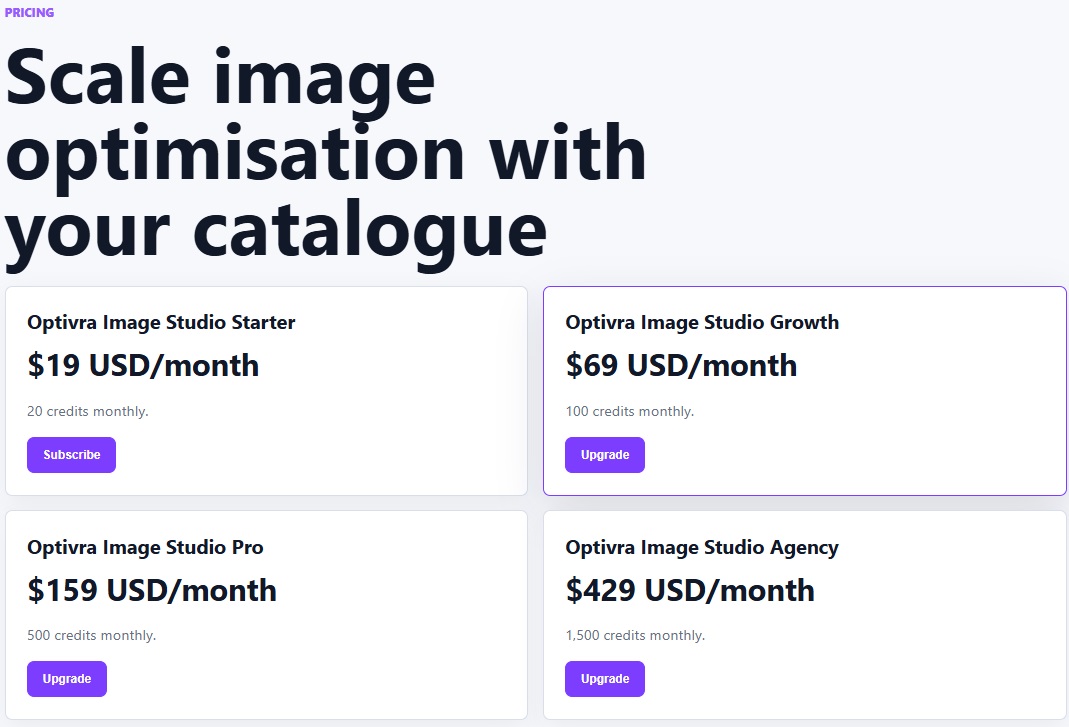
Pricing
20 credits monthly.
100 credits monthly.
500 credits monthly.
1,500 credits monthly.
Optivra Image Studio Credits
Small pack for a quick optimisation batch.
Optivra Image Studio Credits
Best fit for regular catalogue updates.
Optivra Image Studio Credits
Extra capacity for larger store passes.
Optivra Image Studio Credits
High-volume processing for teams and clients.
Account
Manage plans, sites, credits, billing, and API tokens from one workspace.
Dashboard
Open the Stripe billing portal to update payment method, view invoices, or cancel.
Billing
Manage your Optivra Image Studio plan and credits.
20 credits monthly.
100 credits monthly.
500 credits monthly.
1,500 credits monthly.
Optivra Image Studio Credits
Small top-up for a quick batch.
Optivra Image Studio Credits
Medium pack for a catalogue pass.
Optivra Image Studio Credits
Large pack for growing stores.
Optivra Image Studio Credits
Agency pack for high-volume work.
Billing
Your subscription is being synced. If your plan or credits do not update immediately, the Stripe webhook may still be arriving.
Back to BillingBilling
Your credits are being added. This can take a moment.
Back to BillingBilling
No credits were added and no payment was completed.
Back to BillingDocs
Practical help for connecting stores, managing image workflows, and keeping your catalogue consistent.
Learn how to connect your WooCommerce store, process product images, review results, improve SEO metadata, and manage credits.
Open GuideUse account JWTs for dashboard actions and site API tokens for WooCommerce processing.
WooCommerce guide
Optivra Image Studio helps WooCommerce stores scan product images, generate improved AI-powered product visuals, review changes before publishing, and create SEO-friendly image metadata.
Start with one small category before processing your full catalogue.
Optivra connects your WooCommerce store to an external image optimisation service built for ecommerce catalogue work.
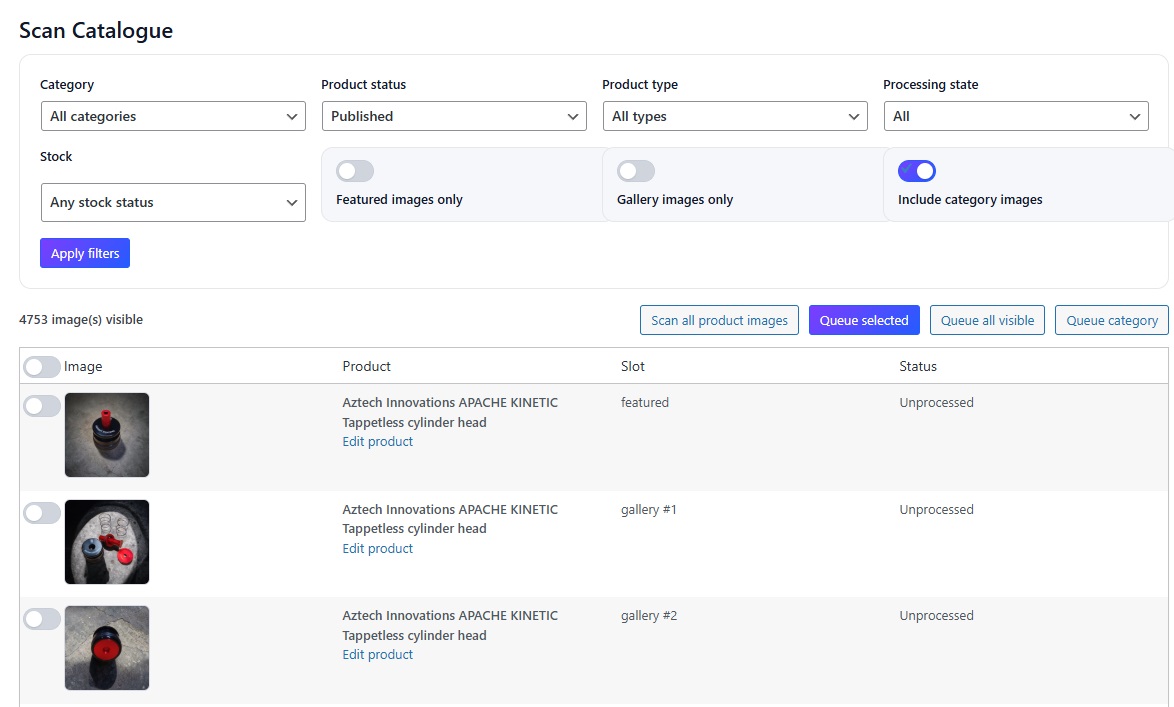
Find featured, gallery, and supported category images already in WooCommerce.
Select the images you want to process and keep the rest untouched.
Send selected images to Optivra for AI background replacement and product image optimisation.
Compare before and after, edit SEO metadata, approve, reject, reprocess, or revert.
The plugin does not automatically replace images unless you approve them or enable an auto-approval setting.
If WooCommerce is inactive, activate WooCommerce first. The plugin needs WooCommerce products and media to scan your catalogue.
If the token fails, check for copied spaces, an inactive account, a wrong store token, SSL issues, or a temporary API connection problem.
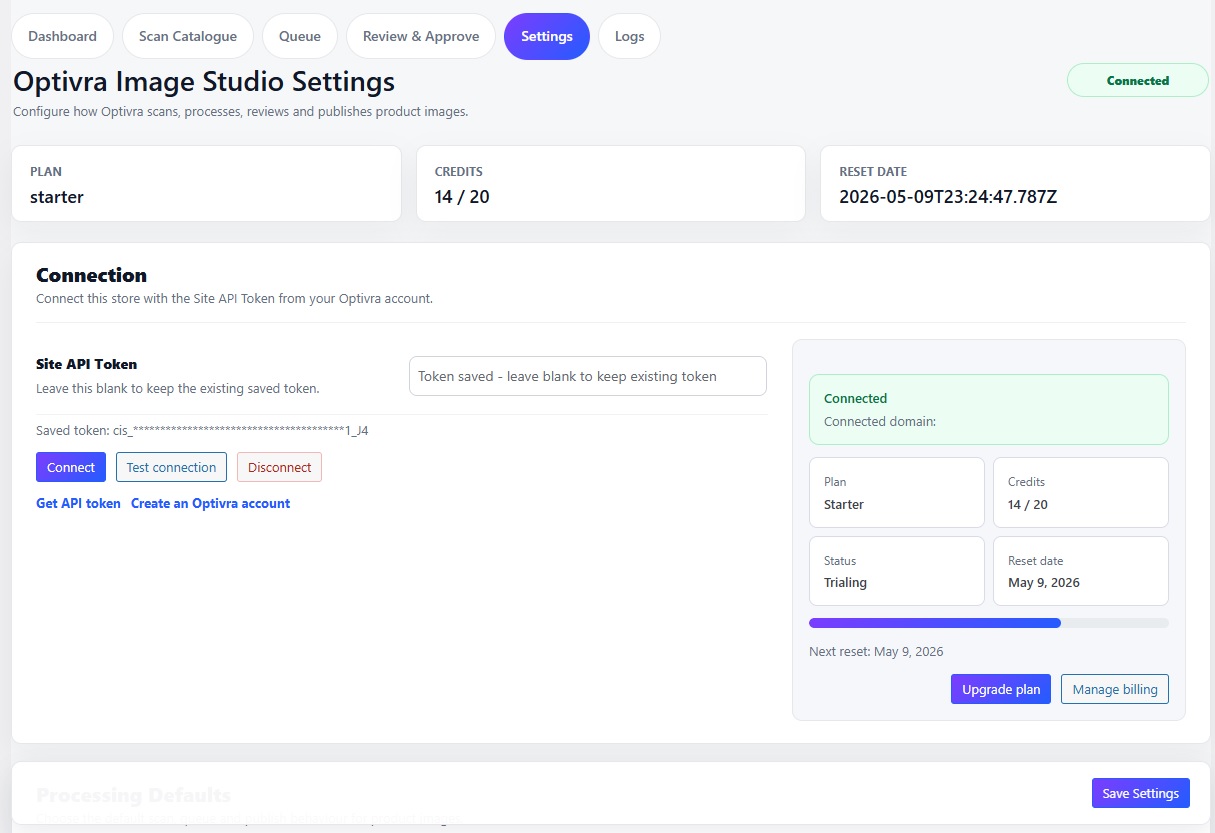
Connect your store and choose practical processing defaults.
Find WooCommerce product images without using credits.
Process selected images in manageable batches.
Compare, edit SEO fields, approve, reject, reprocess, or revert.
View your plan, remaining credits, and links to buy more.
Use diagnostics when support needs a job ID or error message.
For a first pass, keep review required before replacement enabled and test with a small product category.
Use a preset background for a clean, consistent catalogue style, or upload a custom background when your brand needs a specific look.
Category-specific background presets were intentionally removed from Settings to keep the workflow simple. Use global defaults and review individual results before approval.
No generated shadow.
Creates a subtle contact shadow below the item.
Adds depth behind the product using a softer silhouette.
Adjust opacity, blur, offset, spread, softness, and colour.
Lighting enhancement can run automatically or target the product/whole image. Use brightness, contrast, highlight recovery, shadow lift, and neutralise tint gently.
Use subtle shadows and lighting corrections for ecommerce. Heavy effects can make products look artificial.
Scanning does not use credits. Credits are used only when images are processed.
Queued images are waiting to be sent to Optivra. Processing sends the image for AI optimisation. Completed images move to Review & Approve.
Image to edge controls are per image/job, not global settings. Use them only where a product needs to touch one or more sides of the final image.
Do not bulk approve images until you have checked the output style and SEO metadata.
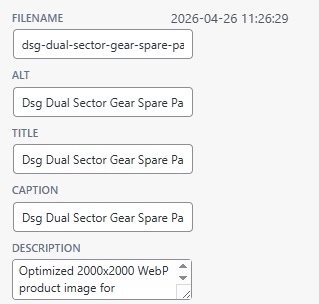
Good image metadata helps accessibility, filenames, image titles, captions, and search engines understand the product and category context.
Clean, lowercase, hyphenated, product-specific.
Natural description for accessibility and context.
Concise product-focused attachment title.
Optional short customer-facing image context.
Richer attachment description using product/category detail.
Filename: hi-capa-holster-gel-blaster-accessory.webp
Alt: Hi Capa holster for gel blaster pistols, shown as a black tactical sidearm accessory.
Title: Hi Capa Holster - Gel Blaster Accessory
Caption: Black Hi Capa holster for gel blaster pistol loadouts and tactical setups.
Description: Optimised product image for the Hi Capa Holster, a tactical gel blaster accessory available from Azraels Armoury.
Avoid old export names like photoroom-20251212-154642-scaled. Regenerate or edit SEO fields before approval.
On approval, the processed image is imported into the WordPress Media Library, SEO metadata is applied, and the correct featured, gallery, or supported category image slot is replaced.
Original images should be preserved for rollback/history. Approve a small batch first before approving larger runs.
Credits are required to process images. Scanning is free. One processed image usually uses one credit unless your account is configured differently.
Available processing capacity.
Credits consumed by successful processing.
Credits included with your subscription allowance.
Billing is managed securely through Optivra and Stripe, not inside WordPress.
Refresh the page, reprocess the image, or contact support with the job ID. The preview URL may be expired, missing, or not synced yet.
The processed URL may be wrong, expired, or missing metadata. Reprocess the job or provide the job ID to support.
Your WordPress session may have expired, permissions may be insufficient, or the plugin may need updating. Reload the page and try again.
Check copied spaces, account status, store domain, and whether the token belongs to this site.
Products may have no images, filters may be too narrow, or the selected image slots may be disabled.
Stripe checkout may still be syncing, payment may be incomplete, or the page may be cached.
Log in first. If it still fails, billing may need setup or the route may be returning an error.
Regenerate SEO metadata and check that the product has a title, category, tags, or attributes.
No. Scanning only finds images. Credits are used when images are processed.
Only if configured to do so. The recommended workflow is review before approval.
Yes. Metadata can be reviewed and edited before final approval.
Original images should be preserved unless a specific setting says otherwise.
Yes. Failed or unsatisfactory images can be reprocessed.
The image may need a refreshed preview URL or the processed metadata may not have synced.
Yes, if the Optivra account or plan supports multiple stores.
No. Billing is handled securely through the Optivra website and Stripe. The plugin only shows billing and credit status.
Email support@optivra.app with your store domain, plugin version, and a short description of the issue.
For billing issues, include the Stripe invoice number from your billing portal.
Use Optivra only for images you own or have permission to process. Service availability depends on third-party APIs including OpenAI, Supabase, Stripe, and your WordPress host.
Optivra stores account details, connected site records, billing references, image job metadata, and uploaded image artifacts required to provide the service. Service role credentials are never exposed to clients.
Subscription changes apply through Stripe billing. Unused credit pack refunds may be reviewed case by case when requested within 14 days and before credits are consumed.