Product Image Intelligence for WooCommerce

Free WooCommerce Product Image Health Report

Scan first. Fix what matters.

Scan your WooCommerce catalogue for image SEO, oversized files, weak filenames, inconsistent backgrounds, poor presentation, and product-feed readiness issues. Then fix the highest-impact images safely with AI.

  • Product Image Health Score
  • SEO, speed and consistency checks
  • Safe AI background cleanup
  • Review before replacing images
  • Originals kept safe

Free scan. No credit card required. No image credits used.

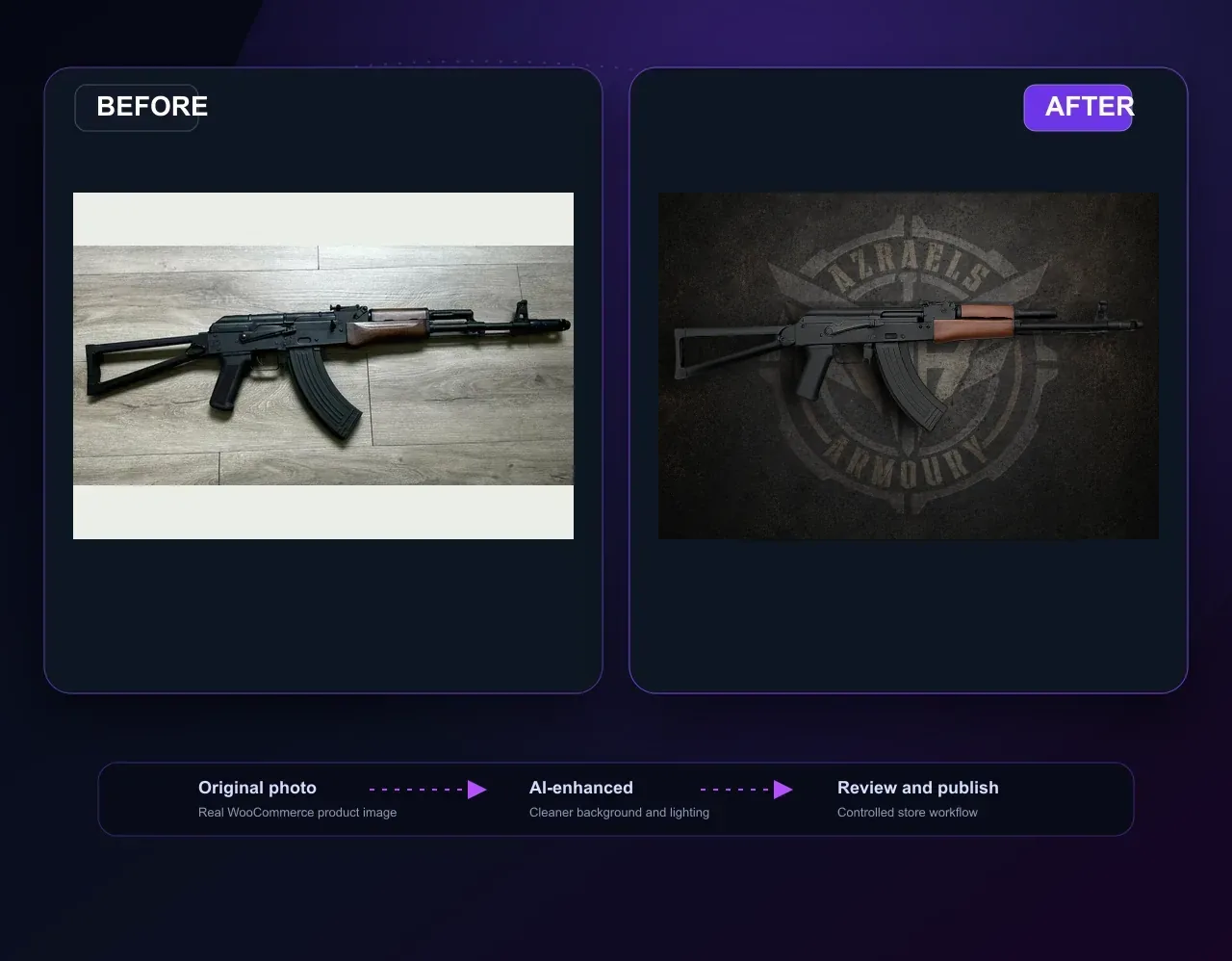
Before and after WooCommerce product image optimisation with Optivra Image Studio.

Plugins

Production tools for product catalogues

Optivra Image Studio

Scan, process, review, approve, and revert WooCommerce product images without leaving admin.

Open plugin details

Payment Gateway Rules for WooCommerce

Control which WooCommerce payment gateways appear at checkout using country, currency, and cart total rules.

Open plugin details

Free WooCommerce image audit

Free WooCommerce Product Image Audit

Find hidden product image SEO, speed, consistency, and presentation issues before you spend time or credits fixing them.

Scanning is free. The report is free/basic. Image credits are used only when Optivra processes or fixes images.

What the audit checks

Find opportunities across image SEO, speed, consistency and presentation.

Missing alt text

Find product images that need useful, product-aware alternative text.

Weak or generic filenames

Spot camera filenames, screenshots, duplicates and filenames with little product context.

Oversized images

Estimate performance opportunities from heavy files and huge dimensions.

Inconsistent ratios

Find catalogue rows where image shapes make products hard to compare.

Inconsistent backgrounds

Identify presentation gaps that may make category pages feel unfinished.

Missing product images

Highlight products without a main image or with only one image.

Product-feed readiness

Use a readiness estimate to surface common product image risks.

Estimated manual time

Understand the scale of work before deciding what to fix first.

Why it matters

Product images affect how shoppers and systems understand your catalogue.

Search engines need useful image context, oversized images can affect page experience, and inconsistent product presentation can reduce perceived professionalism. Product-feed style images also benefit from clean, product-focused presentation.

Image context

Alt text and filenames give products clearer context.

Page experience

Large images may slow product pages if left unoptimised.

Catalogue trust

Consistent product images help category pages feel more professional.

Readiness estimate

Optivra highlights common feed-style image risks without guaranteeing approval.

How it works

1

Install plugin

Download Optivra Image Studio for WooCommerce.

2

Connect Optivra

Connect your store with an Optivra account token.

3

Run scan

Scan product image metadata without using image credits.

4

View report

Review scores, insights, recommendations and estimated manual work.

5

Fix selected issues

Queue SEO, optimisation, or safe AI image cleanup only where it matters.

What is free

Scan for free. Pay to fix when you are ready.

The free audit shows your Product Image Health Score, top opportunities, and recommended fixes. Credits are used when Optivra processes, optimises, or improves images.

Install Optivra and run your free image audit

WooCommerce Plugins

WooCommerce Plugins by Optivra

Practical WooCommerce tools for checkout control, product image optimisation, SEO metadata, and ecommerce workflow automation.

Checkout control

Payment Gateway Rules helps with checkout control

Use it when you need to show or hide payment methods based on checkout conditions such as billing country, shipping country, active currency, or cart totals.

Product presentation

Optivra Image Studio helps with product image presentation and SEO

Use it when you need a review-first workflow for product image optimisation, background improvement, and SEO-friendly image metadata.

FAQ

Are these plugins free?

Payment Gateway Rules for WooCommerce is a free plugin. Optivra Image Studio can be downloaded manually, but image processing uses Optivra account credits.

Do I need an Optivra account?

You do not need an Optivra account for Payment Gateway Rules. You do need an Optivra account and Site API Token for Optivra Image Studio processing.

Is Payment Gateway Rules free?

Yes. It is a complete free plugin for controlling WooCommerce payment gateway visibility.

Does Optivra Image Studio use credits?

Yes. Scanning is free, but processing product images uses credits from your Optivra account.

Are they available on WordPress.org yet?

These plugins are available as direct downloads while WordPress.org listing work is prepared or reviewed. We do not claim WordPress.org approval until a listing is approved.

How do I install them manually?

Download the ZIP, open WordPress Admin → Plugins → Add New → Upload Plugin, choose the ZIP, click Install Now, then Activate.

WooCommerce checkout control

Payment Gateway Rules for WooCommerce

Control which WooCommerce payment gateways appear at checkout. Create rules based on billing country, shipping country, active currency, and cart total conditions.

Download Free Gateway Rules Plugin Read Setup Guide Early access download available
1 Choose installed payment gateways
2 Add country, currency, or cart total conditions
3 Show or hide selected gateways
4 Test checkout with the debug panel

The problem

Checkout payment options are not always one-size-fits-all

WooCommerce stores often need different payment methods for different countries, shipping destinations, currencies, or order values. Managing those decisions manually or with custom code is fragile.

The solution

Rules for payment gateway visibility

Payment Gateway Rules for WooCommerce lets admins create show or hide rules for installed WooCommerce gateways. Payment processing remains handled by Stripe, PayPal, Square, WooPayments, bank transfer, COD, or whichever gateways your store already uses.

How it works

Build checkout rules without custom code

Choose gateways

Select one or more installed WooCommerce payment gateways.

Add a condition

Use billing country, shipping country, active currency, or cart total.

Choose action

Show only selected gateways or hide selected gateways.

Test checkout

Use the debug panel and checkout tests before relying on a rule.

Rule examples

Hide COD outside Australia

Use a shipping country rule to hide Cash on Delivery for international orders.

Show Square for AU orders

Create a billing or shipping country rule for AU and show only the selected local gateway.

Hide bank transfer below $100

Use a cart total rule with a less-than condition to hide manual payment options for small orders.

Show gateways by currency

Use the active WooCommerce currency rule when your store changes currency through WooCommerce APIs.

Prioritise rule order

Rules run from lowest priority number to highest, so specific rules can run before broader rules.

Protect checkout

The default safety fallback restores gateways if rules would hide every payment method.

Actual features

Billing country rules

Match the customer's billing country during checkout.

Shipping country rules

Match the checkout shipping destination where available.

Currency rules

Match the active WooCommerce currency code.

Cart total rules

Use greater than, less than, or between conditions.

Show or hide gateways

Target one or more installed WooCommerce payment gateways.

Debug/test panel

View detected checkout context, matched rules, and visible gateways.

Who it is for

Stores that need checkout control

Useful for WooCommerce store owners, ecommerce managers, agencies, wholesale stores, international stores, and teams using multiple payment gateways.

Security and trust

It does not process payments

The plugin does not store card details, does not process payments directly, does not require secret payment credentials, and does not make external API calls. It only controls gateway availability inside WooCommerce.

Compatibility

WordPress

Requires WordPress 6.3 or later.

WooCommerce

Requires WooCommerce 8.0 or later. Tested up to WooCommerce 9.8.

PHP

Requires PHP 7.4 or later.

Checkout support

Built for WooCommerce's available payment gateways filter. Classic checkout is the primary supported flow; Checkout Blocks should be tested on your store before relying on rules.

Download the free plugin

Available as an early access direct download while WordPress.org preparation continues.

WooCommerce product image intelligence

Product Image Intelligence for WooCommerce

Optivra scans your catalogue, shows what is hurting product image SEO and presentation, then helps you fix the highest-impact images with safe AI workflows.

Works inside WooCommerce Free Product Image Health Report Review before publishing Original images kept safe Priority fix queue
Before and after WooCommerce product image optimisation with Optivra Image Studio.
Review step Review ready Product: Example gel blaster rifle Status: Review required Filename: black-gel-blaster-rifle-studio-cleanup.webp Alt: Black gel blaster rifle on a clean light catalogue background.

What it does

Scan, score, prioritise, process, review and roll back.

Optivra combines a free Product Image Health Report with queue-based AI image processing, SEO metadata recommendations, preserve-mode safety checks, review before replace, and rollback-aware publishing.

Manual workflowDownload -> Edit -> Rename -> Write alt text -> Upload -> Replace -> Check
Optivra workflowScan -> Queue -> Process -> Review -> Approve -> Publish

Workflow

From catalogue scan to approved WooCommerce media

1

Scan

Find main product images, gallery images, variation images and supported category images.

2

Report

Generate a Product Image Health Score, issue list, insights and recommendations.

3

Queue

Add priority fixes for SEO metadata, optimisation, background cleanup or manual review.

4

Process

Use preserve product, Smart Safe, or accurate studio edit workflows as appropriate.

5

Review

Compare before and after previews, inspect safety status, and edit metadata before publishing.

6

Rollback

Keep originals safe so your catalogue remains under your control.

Product Image Health Report

Know what to fix before using image credits.

Product Image Health ScoreOverall catalogue readiness
Image SEOAlt text, filenames and metadata gaps
Image QualityResolution, framing and known visual signals
Catalogue ConsistencyRatios, scale, padding and presentation
PerformanceFile size, dimensions and optimisation opportunity
CompletenessMissing main images and thin galleries
Product Feed ReadinessA conservative readiness estimate
Time SavedEstimated manual work and editing value

WooCommerce-native

Not another disconnected AI image editor. A WooCommerce-native image intelligence workflow.

Optivra Image Studio understands WooCommerce products, featured images, gallery images, variation images, categories, tags, attributes and image slots. It is built for store workflows, not one-off image experiments.

Generic AI editorOptivra Image Studio
Works outside WooCommerceWorks inside WooCommerce
Manual download and uploadScan and publish from the plugin
No product contextProduct-aware metadata
No image slot awarenessMain, gallery, variation and supported category images
No approval workflowReview before publishing
No audit or priority queueHealth Report, recommendations and priority fix queue
Easy to lose originalsOriginals kept safe

Features

A complete image workflow for WooCommerce teams

Product Image Health Report

Scan products and images before using credits.

Batch Queue

Queue selected images, visible filters or catalogue batches without losing control.

AI Background Replacement

Remove messy backgrounds and apply cleaner catalogue-ready scenes.

Brand Backgrounds

Use the Optivra default, white, transparent or your own uploaded brand background.

Smart Framing

Centre, scale and frame products consistently, including per-image edge controls.

Lighting Improvement

Improve clarity and lighting while preserving catalogue accuracy.

SEO Metadata Generator

Create filenames, alt text, titles, captions and descriptions from product data.

Image Optimisation

Queue resizing, compression and WebP-style opportunities where supported.

Smart Safe Validation

Flag product drift, low foreground confidence or unsafe outputs before replacement.

Review & Approve

Review every result before it replaces anything in WooCommerce.

Safe Publishing

Write approved images back to the correct featured or gallery slot.

Original Protection

Keep original media available for safety and rollback workflows.

Credit-Aware Processing

Scan for free and avoid starting batches that exceed available credits.

Agency-Friendly Workflow

Review high-volume catalogue work with repeatable settings and clear status.

Before and after

See the result before anything changes in WooCommerce

Optivra keeps the workflow review-first. Compare the original and processed image, inspect generated SEO metadata, and approve only the results you want to publish.

Run Free Image Audit
Safety: checked Original photo -> AI background cleanup -> Review ready
Before and after WooCommerce product image optimisation with the full product visible.
BeforeOriginal WooCommerce product photo
AfterClean catalogue-ready result
Review stepReady for review
Review required
Original
ProcessedClean background
Product preservationChecked
Processing modeSmart Safe

Subtle enhancement focused on cleanup and consistency.

Review-first by defaultInspect outputs before replacing product images. Original images stay available for rollback.

Efficiency

How much manual image work is hiding in your catalogue?

Optivra helps reduce this by moving scan, queue, processing, review and metadata into one WooCommerce workflow. This calculator is an estimate, not a guaranteed saving.

Estimated manual image workload: 75 hours

WooCommerce image SEO

Product-aware metadata, not camera filenames

Optivra uses product titles, categories, tags and attributes to generate useful filenames, alt text, image titles, captions and descriptions. You can edit everything before approval.

Old filename: IMG_4827-final-edit.png

Generated filename: black-hi-capa-holster-gel-blaster-accessory.webp

Generated alt text: Black Hi Capa holster for gel blaster pistols with tactical belt clip detail.

Install and scan

Install the plugin and run your free audit.

Scan your WooCommerce catalogue for free, build a queue, prioritise high-value products first and use batch warnings to avoid spending credits on work you cannot complete.

Trust and control

Built for production WooCommerce catalogues

No secret keys in the plugin

The plugin connects with a Site API Token. Backend service keys are not stored in WordPress.

Intentional data flow

Product image data is sent only after connection and intentional scan or processing actions.

Originals kept safe

Original media is not deleted by the normal review workflow.

Manual ZIP available

Install directly while the WordPress.org listing is pending review.

FAQ

Does scanning use credits?

No. Scanning finds product images and helps you build a queue. Credits are used only when images are processed.

Can I review images before publishing?

Yes. The recommended workflow is review-before-publish so you can compare images and edit metadata before approval.

Will it overwrite my original images?

The normal workflow keeps original images safe and publishes approved processed images back to the selected WooCommerce slot.

Does it work with featured and gallery images?

Yes. It supports featured/product images, gallery images and supported category images.

Can I use my own brand backgrounds?

Yes. You can use the Optivra default, white, transparent or an uploaded brand background.

Can I edit alt text and filenames?

Yes. Filename, alt text, title, caption and description can be reviewed and edited before approval.

Is this better than Canva, Photoshop or generic AI tools?

Those tools can edit images, but Optivra is designed for WooCommerce catalogue workflow: scan, queue, process, review, metadata and publish back to the correct image slot.

Do I need an Optivra account?

Yes. Image processing uses an Optivra account and Site API Token.

Is the plugin approved on WordPress.org yet?

Review is pending. The plugin is available as a manual ZIP download while the listing is reviewed.

Resources

WooCommerce Product Image Optimisation Blog

Practical guides for improving WooCommerce product photography, image SEO, backgrounds, metadata, and catalogue workflows.

WooCommerce SEO

How to Optimise WooCommerce Product Images for SEO

Improve filenames, alt text, image size, backgrounds, compression, metadata, and review workflows before publishing product images.

Guide8 min read
Read guide

Checklist

WooCommerce Product Image SEO Checklist

A practical checklist for product image filenames, alt text, compression, accessibility, galleries, and metadata before publishing.

Guide6 min read
Read guide

Alt Text

How to Write Alt Text for WooCommerce Product Images

Write useful product alt text that supports accessibility, product context, and search relevance without keyword stuffing.

Guide7 min read
Read guide

Backgrounds

How to Replace Product Image Backgrounds in WooCommerce

Compare background replacement workflows and learn how to review product cutouts, shadows, and original-image safety.

Guide7 min read
Read guide

AI Photography

AI Product Photography for WooCommerce Stores

Understand where AI helps ecommerce image workflows, where human review matters, and how to avoid over-processing products.

Guide8 min read
Read guide

Payment gateway rules

How to Control WooCommerce Payment Gateways by Country

Learn how billing and shipping country rules can show or hide WooCommerce payment methods for different regions.

Guide6 min read
Read guide

Cash on Delivery

How to Hide Cash on Delivery for International WooCommerce Orders

A practical guide to hiding Cash on Delivery when WooCommerce orders ship outside your local region.

Guide5 min read
Read guide

Cart total rules

How to Show Different WooCommerce Payment Methods by Cart Value

Use cart total rules to control checkout payment methods for low-value and high-value WooCommerce orders.

Guide5 min read
Read guide

Checkout operations

Why WooCommerce Checkout Payment Rules Matter

Understand how checkout payment method rules can reduce friction, risk, and manual support for WooCommerce stores.

Guide6 min read
Read guide

Testing

How to Test WooCommerce Payment Gateway Rules Safely

A safe testing checklist for WooCommerce stores using payment gateway visibility rules.

Guide5 min read
Read guide

WooCommerce product image SEO

How to optimise WooCommerce product images for SEO

WooCommerce product image optimisation starts with clear product visuals, useful metadata, and a workflow that lets you review changes before publishing.

Why product image SEO matters

Product images help shoppers understand size, colour, material, compatibility, and quality before they read the full description. Search engines also use image metadata, surrounding product data, page context, and accessibility signals to understand what each image represents.

Use descriptive filenames

Replace camera exports and editing-app filenames with short, product-aware names. A poor filename is photoroom-20251212-154642-scaled.webp. A better filename is hi-capa-holster-gel-blaster-accessory.webp.

Write helpful alt text

Good alt text describes the product naturally. For example: Hi Capa holster for gel blaster pistols shown as a black tactical sidearm accessory.

Keep backgrounds and dimensions consistent

Consistent backgrounds, framing, and image dimensions make product grids easier to scan. Use compression and modern image formats without losing important product detail.

Create a review workflow

Before updating WooCommerce media, compare the original and processed image, review SEO metadata, and approve only the images that are ready for your store.

Improve your catalogue workflow

Optivra Image Studio helps scan WooCommerce product images, process selected images, review results, and apply SEO-friendly metadata.

Download Optivra Image Studio for WooCommerce
Checklist

WooCommerce product image SEO checklist

Use this checklist before publishing new or updated product images in WooCommerce.

Before uploading product images

Confirm the product is sharp, well lit, not distorted, and shown from the correct angle. Keep originals safe so you can roll back if a new version is not suitable.

Filename checklist

  • Use lowercase words separated by hyphens.
  • Include the product name and useful category context.
  • Remove random export numbers, dates, and editing-app names.

Alt text checklist

  • Describe the product clearly.
  • Use attributes such as colour, material, size, and compatibility when useful.
  • Avoid keyword stuffing.

Publishing checklist

Review the image, filename, alt text, title, caption, and description before replacing featured images or gallery images in WooCommerce.

Automate part of the checklist

Optivra Image Studio can generate product-aware metadata and keep a review step before publishing.

Read the setup guide

Alt text

How to write alt text for WooCommerce product images

Good WooCommerce alt text describes the product in plain language and supports accessibility without keyword stuffing.

Describe the product, not the file

Use the product name, type, colour, material, compatibility, or category where useful. Avoid camera export names, dates, or repeated keyword lists.

Use natural category context

For example, "Black Hi Capa holster for gel blaster pistols, shown from the front with tactical belt clip detail" is more useful than "image of product".

Featured images and gallery images

Featured image alt text should usually describe the product overall. Gallery image alt text can describe a specific angle, included accessory, close-up detail, or compatibility feature.

Common mistakes

  • Repeating the filename.
  • Using only the product SKU.
  • Stuffing the same keyword into every image.
  • Leaving alt text blank for important product images.

Create product-aware metadata

Optivra Image Studio uses product titles, categories, tags, and attributes to suggest useful image metadata.

Explore Optivra Image Studio

Background replacement

How to replace product image backgrounds in WooCommerce

Replacing product image backgrounds can make a WooCommerce catalogue feel more consistent, but the workflow should protect original images.

Choose a background style

White and grey backgrounds are useful for clarity. Brand backgrounds can help create a stronger store identity when used consistently.

Keep review controls

Do not automatically replace every image without checking the result. Review shadows, lighting, framing, and product edges before approval.

Preserve originals

A safe WooCommerce workflow imports the processed image, updates the selected image slot, and keeps the original attachment available for rollback.

Watch for common mistakes

Heavy shadows, clipped product edges, warped product shapes, and inconsistent background styles can make a catalogue look less trustworthy. Review before approving bulk updates.

Try a safer replacement workflow

Optivra Image Studio keeps background replacement inside a scan, queue, review, and approve workflow.

Download the plugin

AI product photography

AI product photography for WooCommerce stores

AI product photography tools can help WooCommerce teams standardise backgrounds, improve lighting, and prepare SEO metadata at scale.

Use AI as a workflow assistant

The best results come from combining AI product image enhancement with human review. Store owners should approve final visuals and metadata before publishing.

Control framing and lighting

Use smart framing for normal products, edge controls for products that need to touch the canvas edge, and subtle shadows for ecommerce realism.

Avoid over-processing

The product should still look like the item the customer receives. Do not allow background generation, scaling, or lighting changes to distort the product or hide important details.

Plan credits before large batches

Credit-based processing works best when you scan first, choose the highest-value images, then process in manageable batches.

Build a review-first image workflow

Optivra Image Studio helps WooCommerce stores improve product images while keeping approval in the store owner's hands.

View plans

Payment gateway rules

How to Control WooCommerce Payment Gateways by Country

Learn how billing and shipping country rules can show or hide WooCommerce payment methods for different regions.

Cash on Delivery

How to Hide Cash on Delivery for International WooCommerce Orders

A practical guide to hiding Cash on Delivery when WooCommerce orders ship outside your local region.

Cart total rules

How to Show Different WooCommerce Payment Methods by Cart Value

Use cart total rules to control checkout payment methods for low-value and high-value WooCommerce orders.

Checkout operations

Why WooCommerce Checkout Payment Rules Matter

Understand how checkout payment method rules can reduce friction, risk, and manual support for WooCommerce stores.

Testing

How to Test WooCommerce Payment Gateway Rules Safely

A safe testing checklist for WooCommerce stores using payment gateway visibility rules.

Pricing

Start with a free Product Image Health Report. Pay only when you're ready to fix.

Scanning your WooCommerce catalogue does not use image credits. Credits are used when Optivra processes, optimises or improves images.

Free Image Audit

$0

Free WooCommerce product image scan and basic Product Image Health Report.

  • Product Image Health Score
  • Image SEO Score
  • Performance Score
  • Consistency Score
  • Top recommendations
  • Estimated manual work
  • 10 starter credits for verified production stores, where eligible.
Start Free

Starter

$19 USD/month

50 credits monthly plus platform access, reports, queue workflow, safety checks, review tools, and image processing credits.

  • Full report visibility
  • AI image credits
  • Review queue
  • Preserve/Smart Safe processing

Pro

$159 USD/month

700 credits monthly for larger stores, scheduled scan workflows and brand preset usage.

  • Scheduled scans
  • Brand presets
  • Priority queue workflows
  • Website portal reports

Agency

$429 USD/month

2,000 credits monthly for high-volume teams and multi-store reporting.

  • Multi-store/agency reports
  • Large queue workflows
  • Advanced report visibility
  • Client-ready recommendations

Plans include platform access, reports, queue workflow, safety checks, review tools, and image processing credits.

Credit packs

Credit packs are top-ups for processing work after you have decided what to fix.

Optivra Image Studio Credits

25 Credits

$10 USD

Small top-up for a quick batch.

Optivra Image Studio Credits

350 Credits

$90 USD

Extra capacity for larger store passes.

Optivra Image Studio Credits

1,200 Credits

$250 USD

High-volume processing for teams and clients.

Pricing FAQ

Does scanning use credits?

No. The Product Image Health Report scan does not use image credits.

When is a credit used?

Credits are used when Optivra processes, optimises, or improves an image.

What happens if a job fails safety checks?

Unsafe results are not auto-applied. Failed safety checks can be configured not to charge credits depending on the current account policy.

Can I review before replacing images?

Yes. Review before replace is part of the default safe workflow.

Are original images kept?

Optivra is designed to preserve originals and store rollback metadata where the workflow supports it.

Can I cancel?

Subscriptions are managed through the Stripe billing portal.

Can I use my own OpenAI API key?

No. Processing runs through the Optivra backend for security, queue reliability, validation, and billing controls.

Downloads

Install Optivra Image Studio and run your free Product Image Health Report.

Download the WooCommerce plugin, connect Optivra, scan your catalogue for free, then queue only the fixes that matter.

WordPress.org review pending
Current Release / WordPress.org review pending

Optivra Image Studio for WooCommerce
Free Product Image Health Report, priority recommendations, safe AI image processing, review workflow, and SEO metadata for WooCommerce.

Version
1.0.0
File size
61.5 KB
Last updated
2026-04-29
Setup guide Documentation
Advanced verification details SHA256 546DB7F93B878FEDD7248B0C037918D23A853A87D9400D2F972D9CF693290634

Need help? Email support@optivra.app or visit Support.

Free Plugin

Payment Gateway Rules for WooCommerce

Show or hide WooCommerce payment gateways based on billing country, shipping country, currency, cart totals, and checkout rules.

Version
1.0.0
File size
177.5 KB
Last updated
2026-04-28
Setup guide Documentation
Advanced verification details SHA256 33E82D8FABAC9002CB103CF8E210286709345C66C2965C03522BAA2B30AFFDF4

Need help? Email support@optivra.app or visit Support.

How to install and run the free audit

  1. Enter your email to get the plugin ZIP and setup link.
  2. In WordPress Admin, go to Plugins → Add New.
  3. Click Upload Plugin.
  4. Choose the downloaded ZIP.
  5. Click Install Now.
  6. Click Activate.
  7. Connect your Optivra account.
  8. Run your free Product Image Health Report.
  9. View recommendations and queue selected fixes.

Do not unzip the file before uploading it to WordPress.

WordPress.org review pending

These downloads are available while listings are being prepared or reviewed.

Direct download available now

You can install each plugin manually from the ZIP files above.

Documentation available

Setup guides are linked beside each plugin download.

Support

Email support@optivra.app for help. We do not claim WordPress.org approval until a listing is approved.

Manual updates before approval

Do not add a custom updater. To update before the WordPress.org listing is live, download the latest ZIP and upload it again through WordPress Admin → Plugins → Add New → Upload Plugin.

The hidden problem

Most stores do not know their product images are hurting SEO, speed, and trust.

Missing alt text, generic filenames, oversized uploads, inconsistent backgrounds, poor framing, and missing main product images are easy to overlook when a catalogue grows.

Missing alt text Generic filenames Oversized image files Inconsistent backgrounds Cropped products Weak product-feed readiness Messy category presentation

Product Image Health Report

See what needs attention before you spend credits.

Image SEO Score

Find missing alt text, weak filenames, duplicate filenames, and metadata gaps.

Image Quality Score

Identify low-resolution, poorly framed, over-cropped, or weak product images where data is available.

Catalogue Consistency Score

Find mixed backgrounds, inconsistent ratios, and uneven product presentation.

Performance Score

Spot oversized images, huge dimensions, and WebP or compression opportunities.

Product Feed Readiness

Highlight common product-feed image risks using a readiness estimate.

Estimated Manual Work

See how many hours it could take to fix issues manually.

Workflow

From audit to approved product image.

Optivra does not just process images in bulk. It helps you decide what to fix first, then gives you control before anything changes in WooCommerce.

1

Scan catalogue

Run the free Product Image Health Report from WooCommerce.

2

View Health Report

See scores, insights, issue counts and recommendations.

3

Prioritise fixes

Start with the highest-impact product images and metadata gaps.

4

Add to queue

Create SEO, optimisation, or preserve-mode image jobs from recommendations.

5

Process safely

Use safe AI workflows designed to protect product accuracy.

6

Review before publishing

Approve, edit, retry, or reject before replacing images.

7

Restore original

Keep originals available for rollback where supported.

Safe AI processing

Designed for product accuracy, not random AI redesigns.

Optivra is built around review-before-replace workflows, product preservation checks, and original image protection so merchants stay in control.

  • Review before replace
  • Original images kept safe
  • Product preservation checks
  • Rollback/version history where available
  • Failed or suspicious outputs do not auto-apply
  • Failed safety checks can be configured not to charge credits

Preserve Product

Uses original product pixels wherever possible. Best for accuracy and product-feed safety.

Accurate Studio Edit

Creates a cleaner ecommerce result while aiming to keep the product visually close to the original.

Smart Safe

Checks AI-enhanced output against the original and falls back to preserve mode when product details appear changed.

Before and after

Review every change before it goes live

Optivra lets you compare the original image, AI-enhanced result, generated SEO metadata, and safety status before anything replaces your WooCommerce media.

See Image Studio
Safety: checked Original photo -> AI background cleanup -> Review ready
Original and optimised product image preview with no clipped product edges.
BeforeOriginal WooCommerce product photo
AfterClean catalogue-ready result
Review stepReady for review
Review required
Original
ProcessedClean background
Product preservationChecked
Processing modeSmart Safe

Subtle enhancement focused on cleanup and consistency.

Review-first by defaultInspect outputs before replacing product images. Original images stay available for rollback.

More than a background remover

Optivra covers the whole WooCommerce image workflow.

CapabilityBasic background removerAlt text pluginImage compressorOptivra
Background replacementYesNoNoYes
Product image auditNoPartialPartialYes
SEO scoreNoPartialNoYes
Catalogue consistency scoreNoNoNoYes
Performance opportunityNoNoYesYes
Product Feed ReadinessNoPartialPartialReadiness estimate
Time saved estimateNoNoNoYes
Priority fix queueNoNoNoYes
Review before replaceUsually manualPartialPartialYes
Rollback/version historyNoNoSometimesSupported where enabled
WooCommerce image slotsNoPartialPartialFeatured, gallery, variations
Website portal analyticsNoNoNoYes

Also available

Free WooCommerce Gateway Rules

Control payment gateway visibility by cart value, currency, shipping method, country, role, and more.

Download Gateway Rules

Start with a free Product Image Health Report.

Find the image SEO, speed, consistency, and presentation issues hiding in your WooCommerce catalogue.

Run Free Image Audit

Account

Login to Optivra

Manage plans, sites, credits, billing, and API tokens from one workspace. Start with 10 free credits after connecting a verified production store.

Billing

Billing & Credits

Manage your Optivra Image Studio plan and credits.

Current plan

Login required

Status

-

Credits

-

Credits used

-

Reset date

-

Upgrade plan

Optivra Image Studio Starter

$19 USD/month

50 credits monthly plus platform access, reports, queue workflow, safety checks, review tools, and image processing credits.

Optivra Image Studio Growth

$69 USD/month

200 credits monthly for regular catalogue work and SEO/image cleanup batches.

Optivra Image Studio Pro

$159 USD/month

700 credits monthly for larger stores, scheduled scan workflows and brand preset usage.

Optivra Image Studio Agency

$429 USD/month

2,000 credits monthly for high-volume teams and multi-store reporting.

Buy Extra Credits

Optivra Image Studio Credits

25 Credits

$10 USD

Small top-up for a quick batch.

Optivra Image Studio Credits

350 Credits

$90 USD

Extra capacity for larger store passes.

Optivra Image Studio Credits

1,200 Credits

$250 USD

High-volume processing for teams and clients.

Internal Admin

Optivra Image Studio Analytics

Track connected WooCommerce stores, image processing usage, credit activity, billing conversion, and operational health.

Billing

Checkout complete

Your subscription is being synced. If your plan or credits do not update immediately, the Stripe webhook may still be arriving.

Back to Billing

Billing

Checkout cancelled

No changes were made to your subscription.

Back to Billing

Billing

Credit purchase received

Your credits are being added. This can take a moment.

Back to Billing

Billing

Credit purchase cancelled

No credits were added and no payment was completed.

Back to Billing

Docs

Guides for running Optivra

Image Studio docs are separated from Gateway Rules so you can quickly find audit, processing, rollback, billing, and checkout-control help.

Optivra Image Studio

Getting started, installing the plugin, connecting WooCommerce, running Product Image Health Reports, understanding scores, processing modes, review and approve, rollback, credits, and troubleshooting.

Open Guide

Payment Gateway Rules for WooCommerce

Learn how to install the gateway rules plugin, create show/hide rules, test checkout behaviour, and troubleshoot payment method visibility.

Open Guide

API and account basics

Use account JWTs for dashboard actions and site API tokens for WooCommerce processing.

Image Studio topics

Running a Product Image Health Report

Scan WooCommerce images and interpret the report.

Understanding scores

Image SEO, Catalogue Consistency, Performance and Product Feed Readiness.

Processing modes

Preserve Product, Accurate Studio Edit, Smart Safe and Creative Studio.

Review and approve

Compare before/after images before replacing WooCommerce media.

Rollback/restoring originals

Understand original image protection and version history.

Troubleshooting failed jobs

Use safe messages and debug artifacts only when needed.

WooCommerce guide

Optivra Image Studio Guide

Optivra Image Studio helps WooCommerce stores run a Product Image Health Report, understand image SEO and presentation opportunities, queue priority fixes, review changes before publishing, and create SEO-friendly image metadata.

Tip

Start with one small category before processing your full catalogue.

What Optivra Image Studio does

Optivra connects your WooCommerce store to an image intelligence workflow built for ecommerce catalogue work.

Scan

Find featured, gallery, variation, and supported category images already in WooCommerce.

Report

Generate a Product Image Health Report with scores, insights and recommendations.

Queue

Select the images you want to process and keep the rest untouched.

Process

Send selected images to Optivra for AI background replacement and product image optimisation.

Review

Compare before and after, edit SEO metadata, approve, reject, reprocess, or revert.

The plugin does not automatically replace images unless you approve them or enable an auto-approval setting.

Requirements before you start

  • WordPress admin access
  • WooCommerce installed and active
  • An Optivra account and Site API Token
  • Available image processing credits
  • Product images uploaded to WooCommerce
  • Supported images: JPG, JPEG, PNG, and WebP

Installing the WooCommerce plugin

  1. Download the plugin zip from your Optivra account or download area.
  2. In WordPress Admin, go to Plugins → Add New → Upload Plugin.
  3. Upload the plugin zip and click Install Now.
  4. Click Activate.
  5. Open the Optivra Image Studio menu in WordPress admin.

WordPress.org review is pending. Download the plugin ZIP directly from Optivra and install it manually.

Download Plugin

If WooCommerce is inactive, activate WooCommerce first. The plugin needs WooCommerce products and media to scan your catalogue.

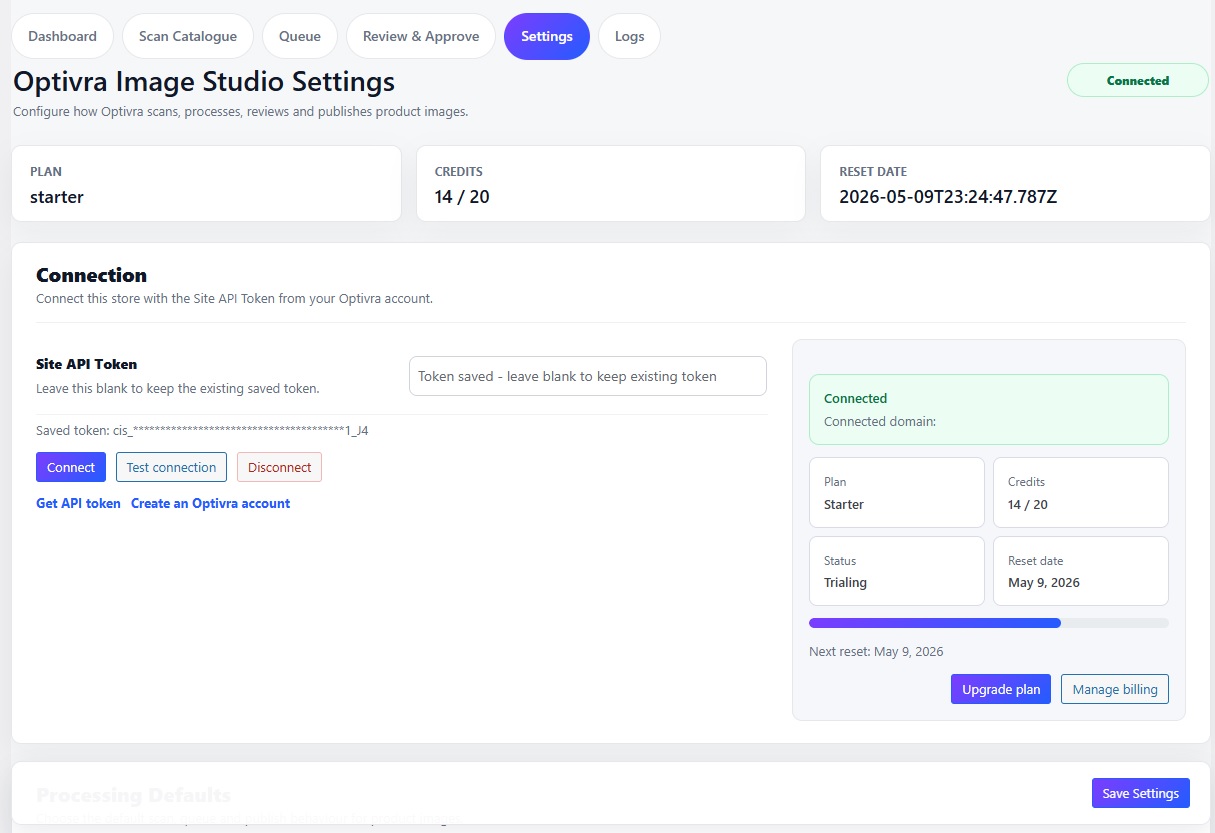
Optivra Image Studio settings screen showing connection status, saved Site API Token, plan, credits, and reset date.
Settings and connection screen with plan, credits, reset date, and account actions.

How to connect Optivra to WooCommerce

  1. Log into the Optivra website.
  2. Open your account or connected sites area and copy the Site API Token.
  3. In WordPress, open Optivra → Settings.
  4. Paste the token, then click Connect or Test Connection.
  5. Confirm the connected domain, plan, credits, and reset date.

After connection, Optivra Image Studio records operational service data such as plugin version, WordPress/WooCommerce/PHP versions, scan counts, queue counts, processing status, credit balance, and error diagnostics. This helps provide account status, credits, processing, and support without collecting orders, payment details, API tokens, passwords, secret keys, or WordPress user lists.

If the token fails, check for copied spaces, an inactive account, a wrong store token, SSL issues, or a temporary API connection problem.

Understanding the dashboard

Settings

Connect your store and choose practical processing defaults.

Scan Products

Find WooCommerce product images without using credits.

Queue

Process selected images in manageable batches.

Review & Approve

Compare, edit SEO fields, approve, reject, reprocess, or revert.

Billing / Credits

View your plan, remaining credits, and links to buy more.

Logs

Use diagnostics when support needs a job ID or error message.

Configuring image settings

For a first pass, keep review required before replacement enabled and test with a small product category.

  • Review requiredRecommended. Prevents changes before you approve them.
  • Include featured, gallery, and category imagesChoose which image slots are discovered and queued.
  • Auto-process scanned imagesLeave off until you trust your output style.
  • Duplicate detectionHelps avoid processing the same image repeatedly.
  • Smart product framingKeeps products large and safely framed.
  • Batch size and retry failed jobsControl how many images run at once and how failures are handled.
  • Low credit pausePrevents large batches from starting when credits are nearly depleted.

Background settings

Use a preset background for a clean, consistent catalogue style, or upload a custom background when your brand needs a specific look.

Category-specific background presets were intentionally removed from Settings to keep the workflow simple. Use global defaults and review individual results before approval.

Background preview and upload control in Optivra Image Studio settings.
Custom background upload and preview controls for branded product image processing.

Shadow and lighting settings

Off

No generated shadow.

Under product

Creates a subtle contact shadow below the item.

Behind product

Adds depth behind the product using a softer silhouette.

Custom

Adjust opacity, blur, offset, spread, softness, and colour.

Lighting enhancement can run automatically or target the product/whole image. Use brightness, contrast, highlight recovery, shadow lift, and neutralise tint gently.

Use subtle shadows and lighting corrections for ecommerce. Heavy effects can make products look artificial.

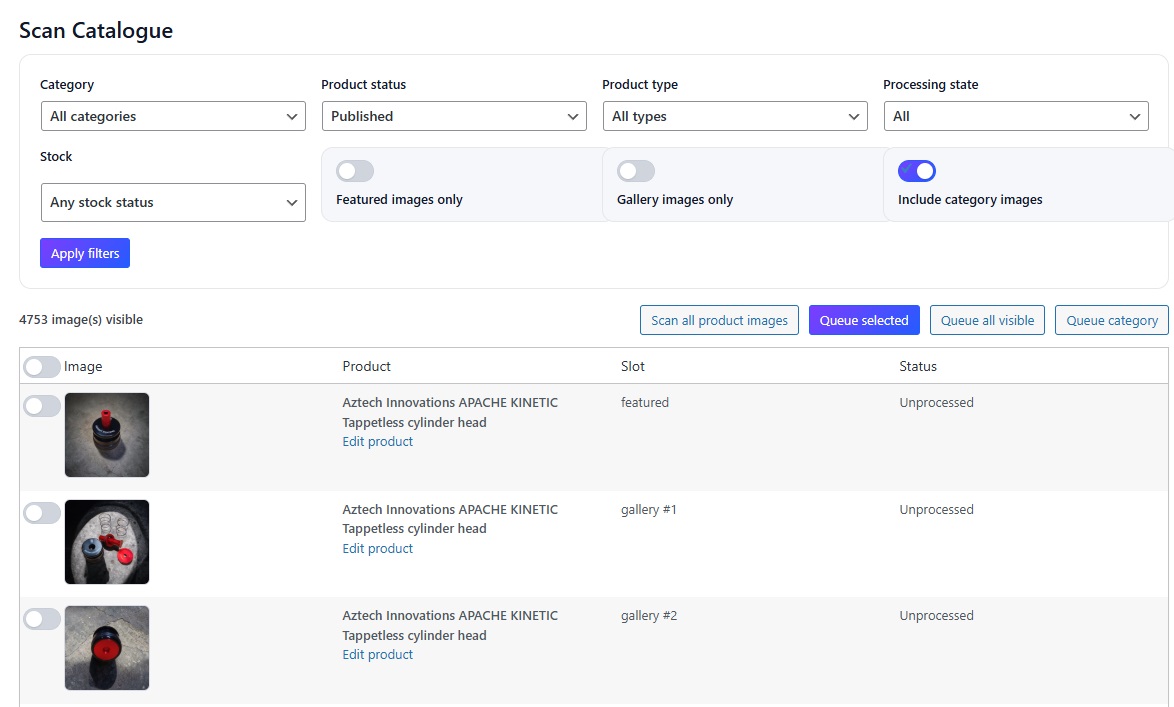
How to scan WooCommerce product images

  1. Open Optivra → Scan Products.
  2. Choose all products or a selected category.
  3. Select product status, product type, stock status, and image slots.
  4. Click Scan Product Images.
  5. Review found images and add selected images to the queue.

Scanning does not use credits. Credits are used only when images are processed.

Scan Catalogue screen with product filters, image slot toggles, and discovered product images.
Scan Catalogue filters and product image results before images are queued.

Queue and processing workflow

Queued images are waiting to be sent to Optivra. Processing sends the image for AI optimisation. Completed images move to Review & Approve.

PendingProcessingReady for ReviewFailedApprovedRejectedMetadata MissingPreview Unavailable
Optivra Image Studio queue and review workflow showing before and after image previews and SEO metadata fields.
Queued and processed images can be reviewed before approval and replacement.

Image framing and edge controls

Image to edge controls are per image/job, not global settings. Use them only where a product needs to touch one or more sides of the final image.

  • Bottom edgeUseful for shoes, bottles, or products that should sit on the lower frame.
  • Left or right edgeUseful for long horizontal products that should align to one side.
  • Top edgeUseful for tall products where the top should anchor to the frame.
  • All edgesUse only when the product should fill the frame.

How to review and approve AI product images

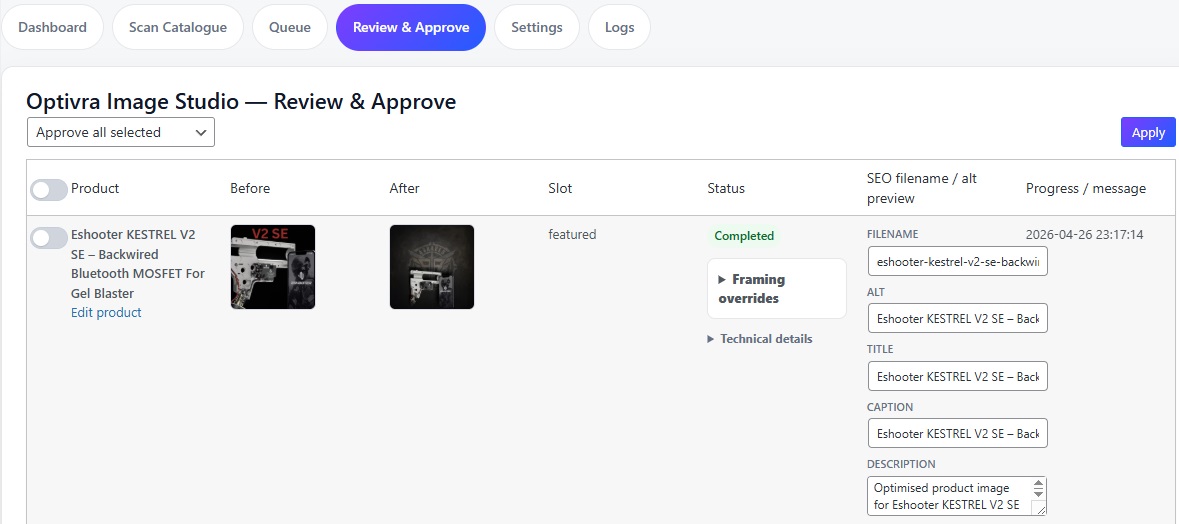
  1. Open Review & Approve.
  2. Compare the Before and After previews.
  3. Open the larger preview when you need more detail.
  4. Check the product name, image slot, and SEO metadata fields.
  5. Edit metadata if needed.
  6. Approve one image, approve selected images, reprocess, reject, or revert.

Do not bulk approve images until you have checked the output style and SEO metadata.

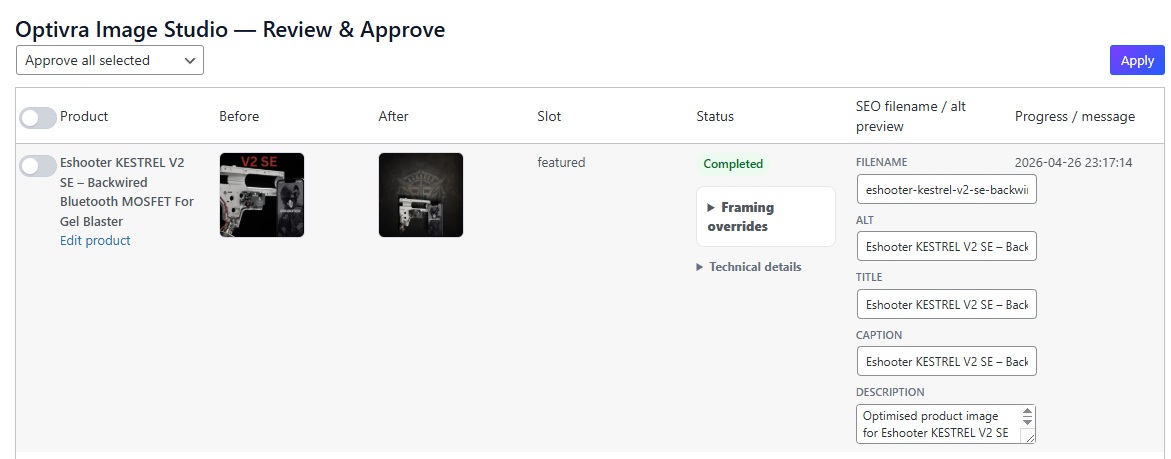
Review and Approve screen showing before and after product image previews, status, framing overrides, and SEO fields.
Review & Approve keeps replacement under admin control before publishing.

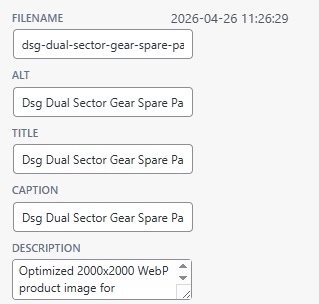
How to generate SEO image metadata for WooCommerce

Good image metadata helps accessibility, filenames, image titles, captions, and search engines understand the product and category context.

Filename

Clean, lowercase, hyphenated, product-specific.

Alt text

Natural description for accessibility and context.

Title

Concise product-focused attachment title.

Caption

Optional short customer-facing image context.

Description

Richer attachment description using product/category detail.

Example: Hi Capa Holster

Filename: hi-capa-holster-gel-blaster-accessory.webp

Alt: Hi Capa holster for gel blaster pistols, shown as a black tactical sidearm accessory.

Title: Hi Capa Holster - Gel Blaster Accessory

Caption: Black Hi Capa holster for gel blaster pistol loadouts and tactical setups.

Description: Optimised product image for the Hi Capa Holster, a tactical gel blaster accessory available from Azraels Armoury.

Avoid old export names like photoroom-20251212-154642-scaled. Regenerate or edit SEO fields before approval.

SEO metadata fields for filename, alt text, title, caption, and description.
SEO fields can be reviewed and edited before approving a processed image.

Approving and replacing images

On approval, the processed image is imported into the WordPress Media Library, SEO metadata is applied, and the correct featured, gallery, or supported category image slot is replaced.

Original images should be preserved for rollback/history. Approve a small batch first before approving larger runs.

Credits and billing

Start with 10 free credits after connecting a verified production WooCommerce store. Credits are required to process images. Scanning is free. One processed image usually uses one credit unless your account is configured differently.

Free credits are issued once per verified production store/domain. Creating another login does not issue more free credits for the same WooCommerce store.

Credits Remaining

Available processing capacity.

Credits Used

Credits consumed by successful processing.

Monthly Plan Credits

Credits included with your subscription allowance.

Billing is managed securely through Optivra and Stripe, not inside WordPress.

Staging, development, local, preview, and temporary hosting domains can connect for testing but do not receive free signup credits. Store transfers are supported if ownership changes; the original free credit grant remains attached to the store domain.

Buying extra credits

  1. Open Billing in the Optivra website.
  2. Choose a credit pack.
  3. Click Buy Credits and complete Stripe checkout.
  4. Return to Optivra and refresh billing if credits are still syncing.
25 Credits120 Credits350 Credits1,200 Credits
Open Billing
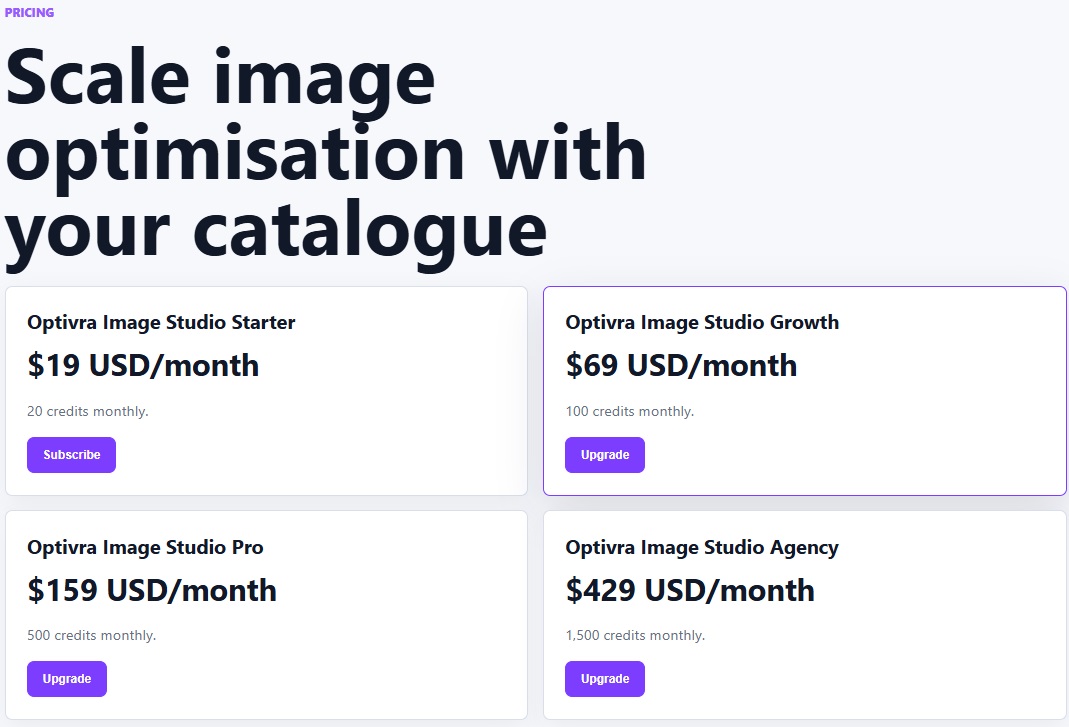
Optivra billing screen showing subscription plan cards and monthly credit allowances.
Billing shows plan options and credit allowances for scaling catalogue optimisation.

Troubleshooting

After image is not showing

Refresh the page, reprocess the image, or contact support with the job ID. The preview URL may be expired, missing, or not synced yet.

“Not Found” when opening image

The processed URL may be wrong, expired, or missing metadata. Reprocess the job or provide the job ID to support.

Settings do not save

Your WordPress session may have expired, permissions may be insufficient, or the plugin may need updating. Reload the page and try again.

Token invalid

Check copied spaces, account status, store domain, and whether the token belongs to this site.

No images found after scanning

Products may have no images, filters may be too narrow, or the selected image slots may be disabled.

Credits not updating

Stripe checkout may still be syncing, payment may be incomplete, or the page may be cached.

Buy Credits button does nothing

Log in first. If it still fails, billing may need setup or the route may be returning an error.

SEO fields look like old filenames

Regenerate SEO metadata and check that the product has a title, category, tags, or attributes.

Best practices

  • Start with 5–10 products.
  • Review before approving.
  • Use consistent background and lighting settings.
  • Avoid over-processing or heavy shadows.
  • Keep filenames natural and product-specific.
  • Use category context in alt text.
  • Process high-value products first.
  • Monitor credits before large batches.

FAQ

Does scanning use credits?

No. Scanning only finds images. Credits are used when images are processed.

Will Optivra replace images automatically?

Only if configured to do so. The recommended workflow is review before approval.

Can I edit SEO fields before approval?

Yes. Metadata can be reviewed and edited before final approval.

Are original images deleted?

Original images should be preserved unless a specific setting says otherwise.

Can I reprocess an image?

Yes. Failed or unsatisfactory images can be reprocessed.

Why is my processed image not displaying?

The image may need a refreshed preview URL or the processed metadata may not have synced.

Can agencies use this for multiple stores?

Yes, if the Optivra account or plan supports multiple stores.

Is Stripe handled in WordPress?

No. Billing is handled securely through the Optivra website and Stripe. The plugin only shows billing and credit status.

WooCommerce guide

Payment Gateway Rules for WooCommerce Guide

Learn how to install the plugin, create gateway rules, test checkout behaviour, and troubleshoot common issues.

What the plugin does

Payment Gateway Rules for WooCommerce controls which installed WooCommerce payment gateways appear at checkout based on rules. It does not replace Stripe, PayPal, Square, WooPayments, bank transfer, cash on delivery, or any other payment gateway.

The plugin does not process payments and does not store card details. Payment processing remains handled by your enabled WooCommerce gateways.

Requirements

  • WordPress 6.3 or later.
  • WooCommerce 8.0 or later installed and active.
  • PHP 7.4 or later.
  • At least one active WooCommerce payment gateway.
  • Administrator access to WordPress.
  • HTTPS is strongly recommended for checkout.

Installation

  1. Download the plugin ZIP.
  2. Open WordPress Admin → Plugins → Add New.
  3. Click Upload Plugin.
  4. Choose the ZIP file and click Install Now.
  5. Click Activate.
  6. Make sure WooCommerce is active.
  7. Open WooCommerce → Gateway Rules.

Where to find settings

The plugin adds a submenu at WooCommerce → Gateway Rules. This page contains rule management, safety fallback settings, and the debug/test panel.

Creating your first rule

  1. Open WooCommerce → Gateway Rules.
  2. Enter a clear rule name.
  3. Enable the rule.
  4. Choose a match type: billing country, shipping country, active currency, or cart total.
  5. Enter the relevant country code, currency code, or cart total condition.
  6. Select one or more target gateways.
  7. Choose whether to show only selected gateways or hide selected gateways.
  8. Set a priority number and save.
  9. Test checkout before relying on the rule.

Common rule examples

Hide Cash on Delivery outside Australia

Use a shipping country rule and hide COD when the destination is not AU.

Hide bank transfer below $100

Use a cart total less-than rule and hide bank transfer for smaller carts.

Show local gateways for selected countries

Use billing or shipping country rules and show only selected local payment methods.

Control gateways by currency

Use the active currency rule when WooCommerce reports the correct currency code.

User role, product/category, and shipping method rules are not included in version 1.0.0. Do not plan workflows around those conditions unless a later version adds them.

Testing rules

  • Use an incognito/private browser window.
  • Test guest checkout and logged-in checkout where relevant.
  • Try different billing countries, shipping countries, currencies, and cart totals.
  • Clear caches and avoid caching checkout pages.
  • Check the debug/test panel for detected context, matched rules, and final visible gateways.

Troubleshooting

Gateway not hiding

Check that the rule is enabled, the correct gateway is selected, and the condition matches the current checkout context.

Gateway not showing

Confirm the gateway is enabled in WooCommerce and that a higher-priority rule is not hiding it later.

Shipping country rules do not apply

Some checkout states may not have a shipping country yet. Test with a full address and shipping destination entered.

Checkout Blocks issue

The plugin uses WooCommerce gateway filtering. Classic checkout is the primary supported flow; test Checkout Blocks carefully before relying on production rules.

No payment methods available

Keep the default safety fallback enabled unless you intentionally want checkout to show no methods when all gateways are hidden.

Cache issue

Do not cache checkout, cart, or checkout fragments. Clear page and object caches after changing rules.

FAQ

Does this plugin process payments?

No. It controls gateway visibility. Payments are still processed by your existing WooCommerce payment gateways.

Does it store card details?

No. It does not store card details or payment credentials.

Can I hide Cash on Delivery for international customers?

Yes. Use billing country or shipping country rules with your COD gateway selected.

Can I create multiple rules?

Yes. Rules can be enabled, ordered by priority, and targeted to one or more gateways.

Does it work with WooCommerce Checkout Blocks?

Checkout Blocks support should be tested on your store. The plugin primarily hooks WooCommerce's available payment gateways filter.

What happens if all gateways are hidden?

By default, the plugin restores all gateways to protect checkout. You can change this safety behaviour in settings.

Support

Get help with Optivra

Optivra does not automatically replace product images unless your settings allow it. You can review outputs before publishing.

Get help with Gateway Rules

For checkout visibility issues, include your WordPress version, WooCommerce version, plugin version, active gateways and expected checkout behaviour.

Common issues

Scan not finding products

Check WooCommerce product status, image permissions, and plugin connection.

API token not connecting

Reconnect Optivra and confirm the saved token is masked, present, and current.

Image processing failed

Review the safety status and failure reason before retrying.

Product changed in AI output

Use Preserve Product or Smart Safe and keep review-before-replace enabled.

Credits after failed safety check

Check the account policy and job status; unsafe outputs should not auto-replace images.

Background upload too large

Use a smaller web-ready background and keep previews constrained.

Review queue not applying

Confirm permissions, WooCommerce media access, and the product image slot.

Debug export

Enable debug mode only when requested, then share the safe debug bundle without tokens.

For billing issues, include the Stripe invoice number from your billing portal.

Payment Gateway Rules support checklist

For Payment Gateway Rules for WooCommerce issues, include your WordPress version, WooCommerce version, PHP version, plugin version, active payment gateways, a screenshot or summary of the rule, expected checkout behaviour, and actual checkout behaviour.